
Drawing a circle geometry (mesh) seems easy but they are actually not, Rendering engines such as OpenGL, DirectX, Volkan they like to draw a triangles and that’s great if we try to draw rectangle which compose of a two triangle, but circles are round and they have a smooth curve like geometry but triangles has jagged edge or line and they are definitely not a smooth curve.
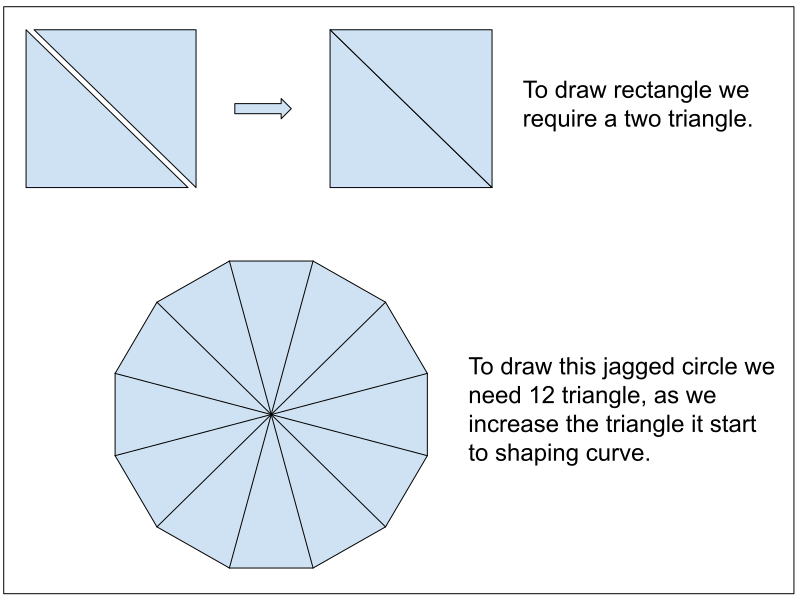
As shown in the above image just imagine how many triangles we need to draw a smooth circle. And to draw a circle by using this kind of a geometric approach might not always be a good option.
So let’s dial back the circle, they shouldn’t be this much complex, in fact the circle is one of the simplest shapes to describe. If we were to mathematically describe then they simply like points and then the radius. And in many ways it is simpler than the rectangles. Then why is it so difficult to render? Because again GPUs like the triangles.
But if we leave a triangle aside for now and if we just create a circle without any triangles, yes here fragment shader helps us to draw a smooth round circle. Without worrying about the triangles.
Draw Circle using fragment Shader
This tutorial mainly focuses on drawing a circle using GLSL although if you use HLSL or MSL this should be very easy to adapt.
When we draw a circle using shader we have a full control like how smooth we want the circle edge, can add a nice fading effect etc.
To draw a circle we need simple geometry and there coordinates, let’s consider we are drawing a circle on quads [Square shape geometry commonly made up of 2 triangles].
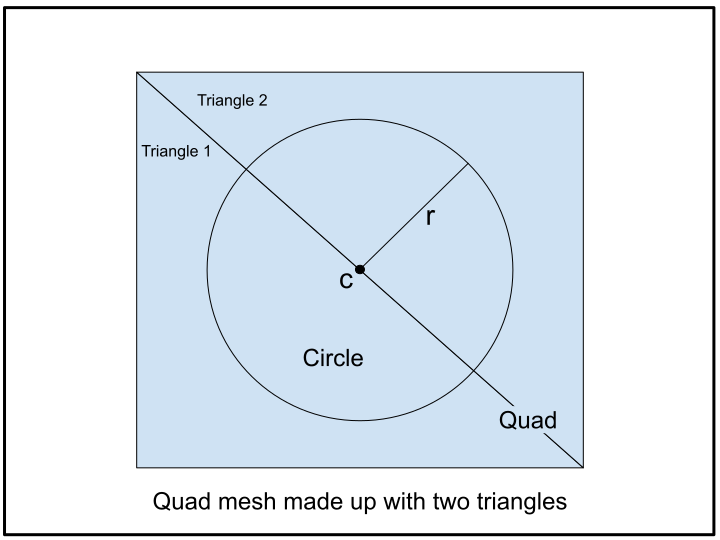
To understand this you can assume quad as a canvas and circle is the drawing which you are going to draw on it.
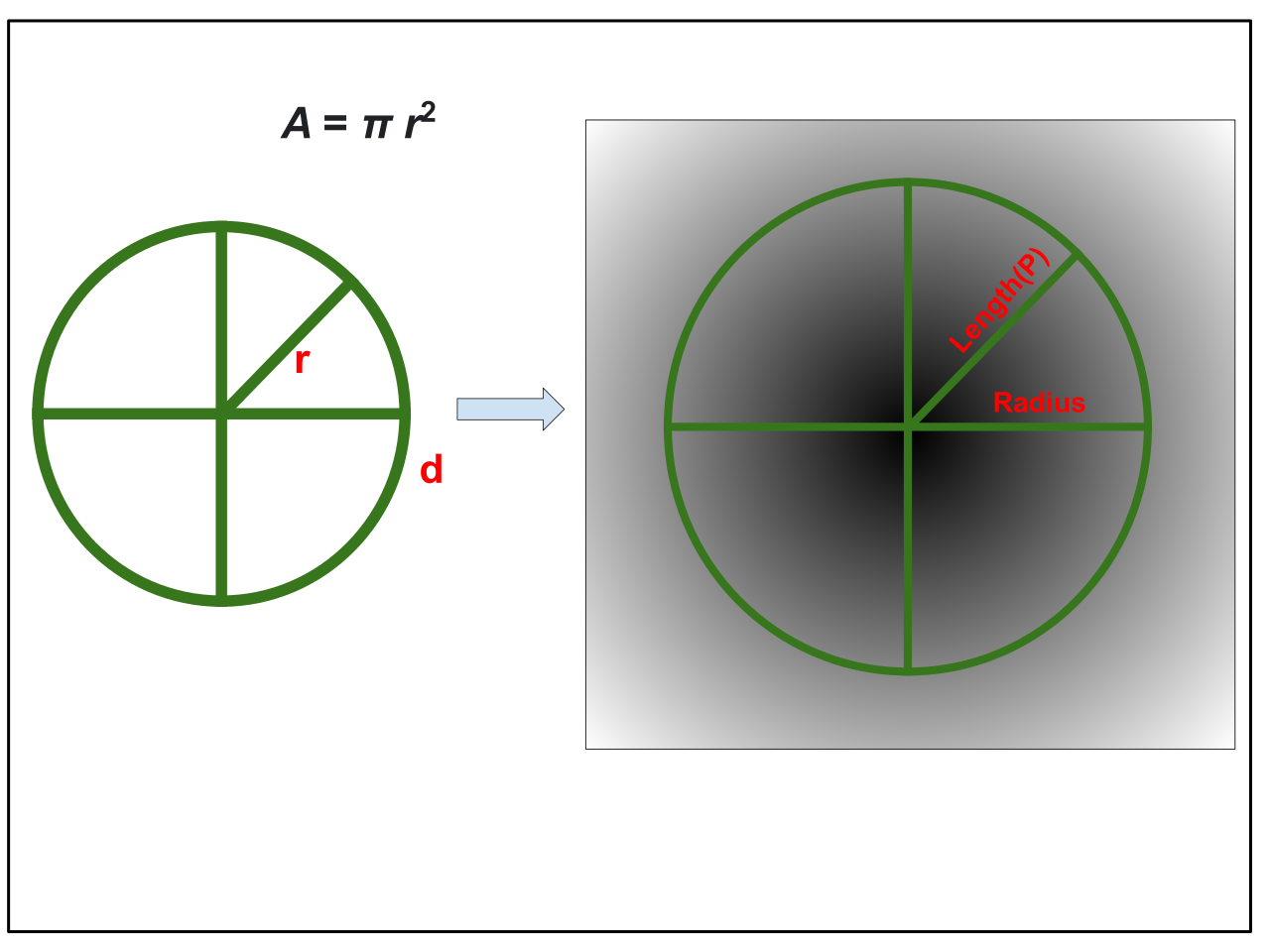
Describing a circle mathematically is fairly easy, i.e A = π r2
Methods to Draw a Circle in GLSL
Below are a few common ways to draw a circle using a fragment shader in GLSL, ranging from basic distance calculation to smooth antialiased edges.
1. Using Distance Function ( ‘length’ or ‘distance’ )
The simplest way to render a circle is by computing the distance from the center of the UV space ( usually offset so the center is at ‘vec2(0.5)’ or ‘vec2(0.0)’ ) and comparing it against the desired radius.
2. Using ‘step()’ Function
Instead of using an ‘if’ condition (which can cause branching performance costs on GPUs), you can use the GLSL built-in ‘step(edge, x)’ function. It returns ‘0.0’ if ‘x < edge’ and ‘1.0’ if ‘x >= edge’.
3. Antialiased Circle with ‘smoothstep()‘
Hard edges rendered with ‘step()’ often look jagged (aliased). Using ‘smoothstep(edge0, edge1, x)’ creates a smooth transition along the circumference, resulting in an antialiased edge.
4. Ring / Stroked Circle
To draw only the outline/ring of a circle, subtract an inner filled circle from an outer filled circle or use absolute distance relative to the radius.